

At first, everything is manageable. You start your project with a few requirements and use cases, and perhaps even a small block diagram. No cause for concern. But with every sprint, the amount of data grows, and the project becomes more complex. New requirements are added, diagrams are expanded, and priorities shift. Suddenly, you spend more time searching than doing actual work. Visibility is lost, and efficiency suffers.
With version 9.4, objectiF RPM introduces a feature that addresses this exact challenge. With labels, you can create an organizational system that you can adapt to your way of working. Using the VisitorPass sample project, we demonstrate how labels can connect project elements thematically and accelerate search processes.
VisitorPass – Digital Visitor Registration
VisitorPass is a web application that enables digital visitor registration at reception for companies. The system generates a QR code badge and automatically notifies the responsible employee.
Creating Labels in the Label Catalog
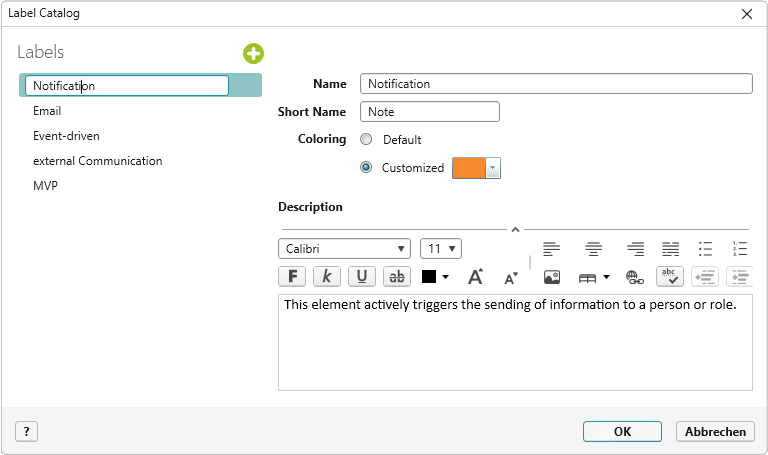
Use the context-specific menu under “Manage labels” to create project-specific categories. For VisitorPass, define the following labels: Email, Notification, Event-driven, and External Communication. Add MVP as an additional, independent label. Using labels to establish consistent naming across a wide range of subcategories is especially beneficial in growing projects.
Assign and Display Labels Effectively
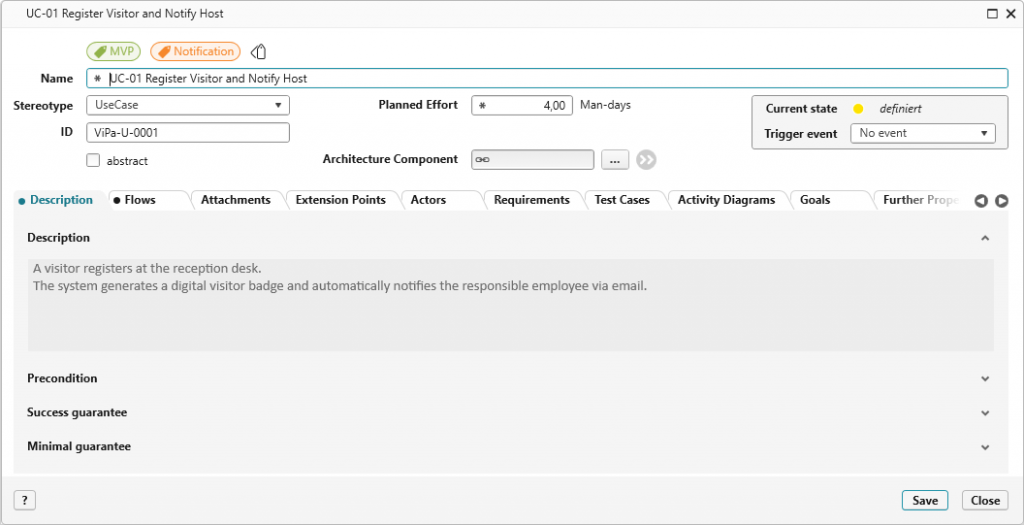
Next, you can assign the created labels to different element types. Using the context menu, you can select which labels to add or remove. The assigned labels will appear directly in an element’s dialog, where they can be applied with a single click. You can also use the form designer to precisely position labels within the form.
Cross-Element Analysis with Labels
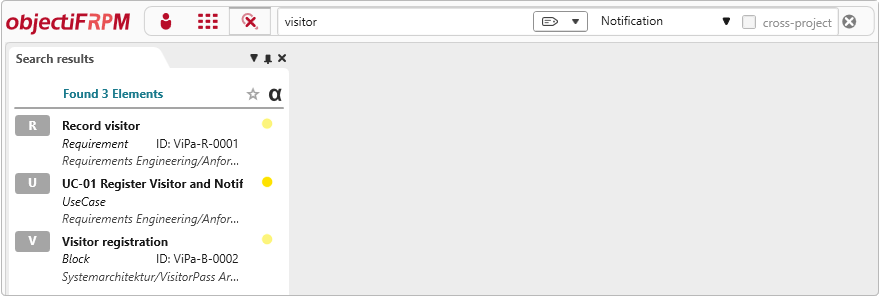
You can display and evaluate labels in views and queries. What makes our labels special is that they work across element types. Elements carrying labels, such as requirements, use cases, and architecture, are displayed together. In our VisitorPass example, the full-text search reveals all relevant elements related to the keyword “Visitor” with the label “Notification.” This significantly reduces search times, especially in larger projects.
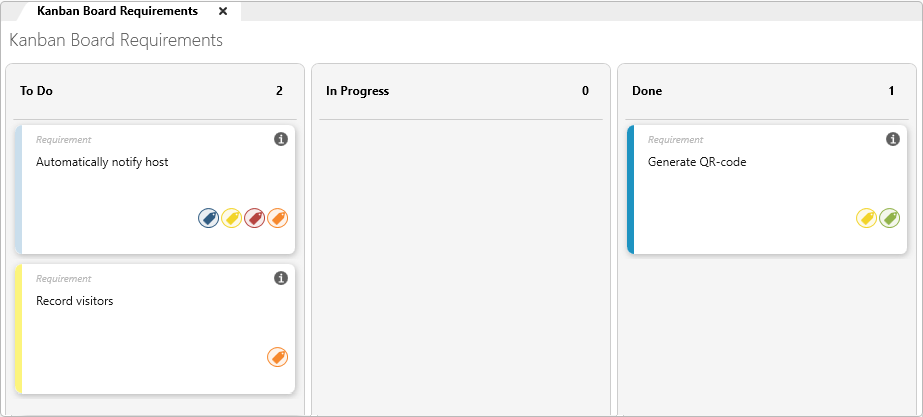
The assigned labels can also be displayed on the Kanban board. For example, a Kanban board shows all requirements with the status “To Do.” With labels enabled, you can instantly see which requirements are part of the notification and which belong to the minimum viable product (MVP). This significantly improves the team’s ability to make informed decisions.
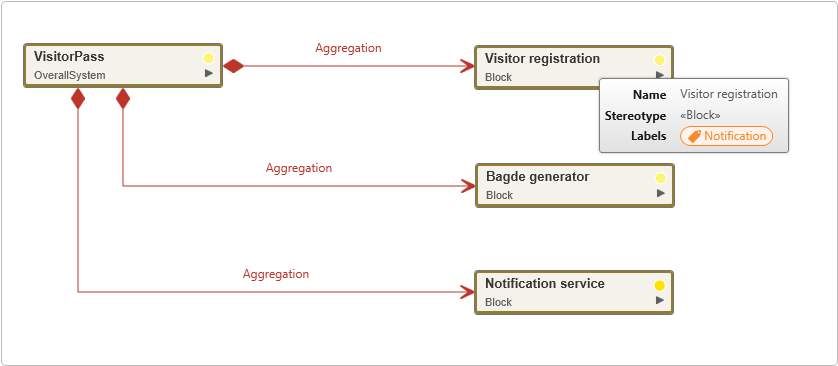
After labels have been assigned, they can be displayed in diagrams in the tooltip of the respective element. In our example, hovering over the Visitor registration block shows the label “Notification.”
Labels can also be used in document management. You can incorporate them when creating document templates and export them to Word and/or PDF documents.
Conclusion
In objectiF RPM, labels serve a purpose beyond additional categorization. They help maintain clarity despite increasing complexity. They are especially useful in growing projects. They connect all types of project content, as demonstrated in our example with requirements, use cases, and architecture elements.
See for yourself how simple structured complexity can be, and try objectiF RPM with the free Trial.